How to Identify and Solve Common Headphone Issues
26 February 2026
Headphones are part of our daily lives. Whether you're jamming to your favorite playlist, diving into a movie, or grinding through a Zoom call, chances are you've had a pair wrapped around your ears. But what happens when they start acting up? Nothing’s more annoying than uneven sound, static crackles, or total silence when you just want to vibe or focus.
In this jam-packed guide, we’re going to break down common headphone problems, why they happen, and how you can fix them without tossing your headphones into the void (or onto the floor in frustration). So, grab your headphones, a mini screwdriver if you're brave, and let’s troubleshoot like tech pros.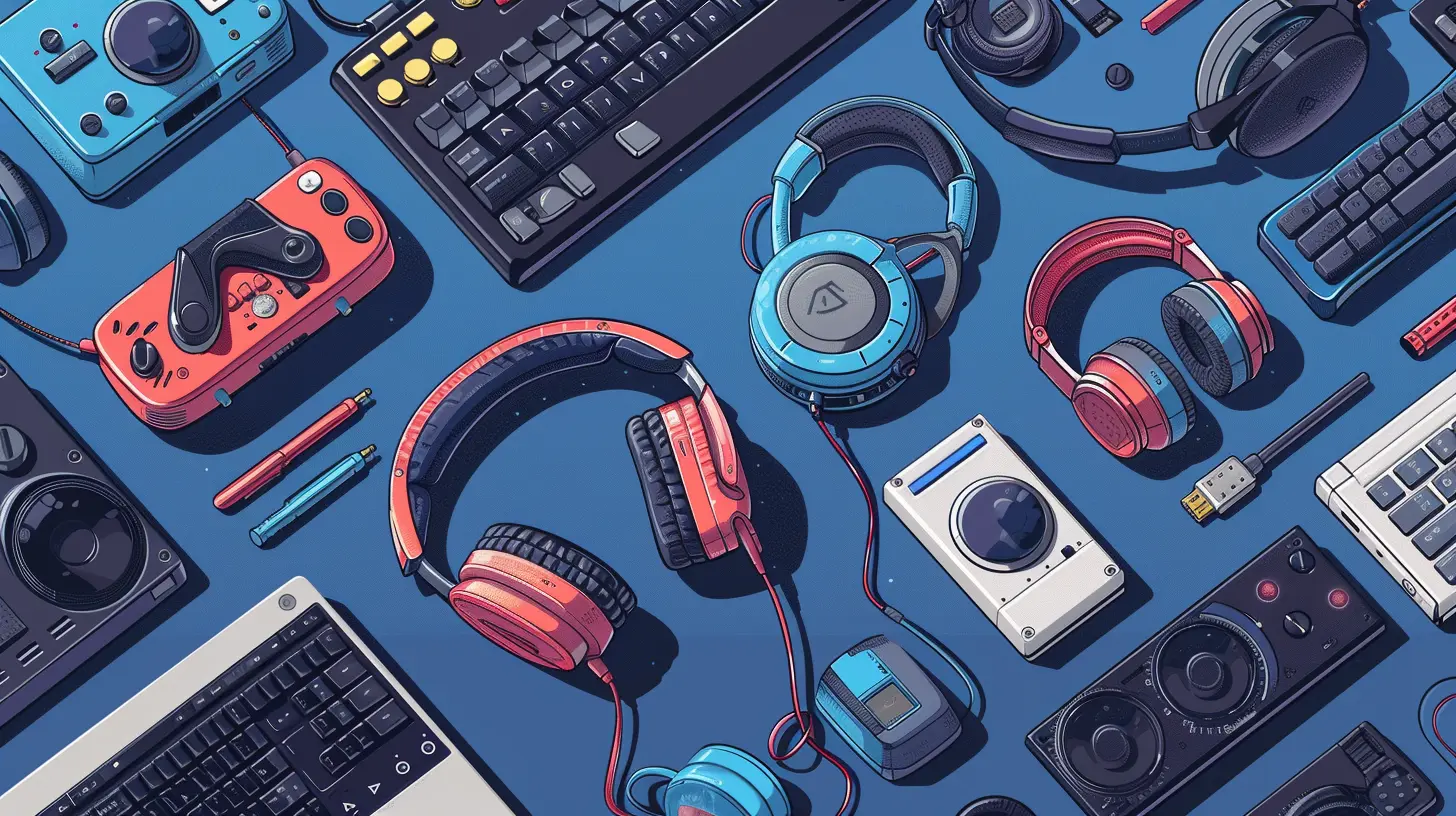
🎧 Sound Only Comes Out of One Side – The Classic “Mono Mayhem”
Ah yes, the infamous "only one earpiece works" problem. It’s as frustrating as untangling a hundred-year-old necklace.Why It Happens:
- Worn-out cables: Especially where the wire bends a lot—like near the jack or the headphone itself.- Jack issues: Dirt, dust, or a loose connection in the audio jack.
- Driver failure: The tiny speaker inside one earpiece might have simply died.
- Audio source glitch: Sometimes it’s not the headphones; your phone or laptop might be the villain.
How to Fix It:
- Wiggle Test: Plug it in and gently wiggle the cable. If the sound cuts in and out, it’s likely a cable issue.- Check Another Device: Try a different phone or laptop. If it works there, your original device is the problem.
- Clean the Jack: Use a toothpick or compressed air to clean out any dust.
- DIY Repair: If you have a soldering iron and steady hands (plus the will of a Jedi), you can strip the casing and attempt cable rewiring. Not for the faint-hearted, though.
🔇 Headphones Aren’t Producing Any Sound – The Total Silence Dilemma
No sound at all? It’s like screaming into a void and hearing nothing but your regret.Why It Happens:
- Loose connections: Cable not fully plugged in or jiggling mid-use.- Bluetooth pairing failure: You thought it paired…but it didn’t.
- Volume levels: Silly, but check if it’s muted or at zero volume.
- Faulty internal wiring: Especially common in cheap or aging headphones.
- Driver failure: Again, the component responsible for converting electrical signals to sound may be dead.
How to Fix It:
- Reconnect: Unplug and plug it back in. For Bluetooth, unpair and re-pair.- Try Another Source: Rule out your phone or PC. Try it with something else.
- Check Sound Settings: Ensure the right playback device is selected.
- Inspect the Cable: Look for frays, cuts, or unnatural bends.
- Warranty Check: If all else fails and it’s under warranty—claim it. That's what it's there for.
🔊 Distorted or Crackling Sound – The Static Symphony
Is your music sounding like it's being played through a potato? Static, crackles, or occasional distortion can make high-quality headphones sound like a $5 garage sale find.Why It Happens:
- Loose connections: A partially inserted jack can cause static.- Interference: Wireless headphones might be experiencing signal issues.
- Dirty components: Dust or grime in the jack or connectors.
- Cable damage: Frayed or broken wires inside the cable are culprits.
- Overblown drivers: Those late-night bass-boosted EDM sessions might have taken a toll.
How to Fix It:
- Clean Everything: Headphone jack, connectors, and cable ports.- Reduce Interference: Turn off other Bluetooth devices nearby or move away from Wi-Fi routers.
- Check Volume Settings: Too much volume can damage drivers and cause distortion. Lower it and see if there's improvement.
- Test Another Source: Your phone might be the problem.
- Replace the Cable: If your headphones have detachable cables, this could be an easy fix.
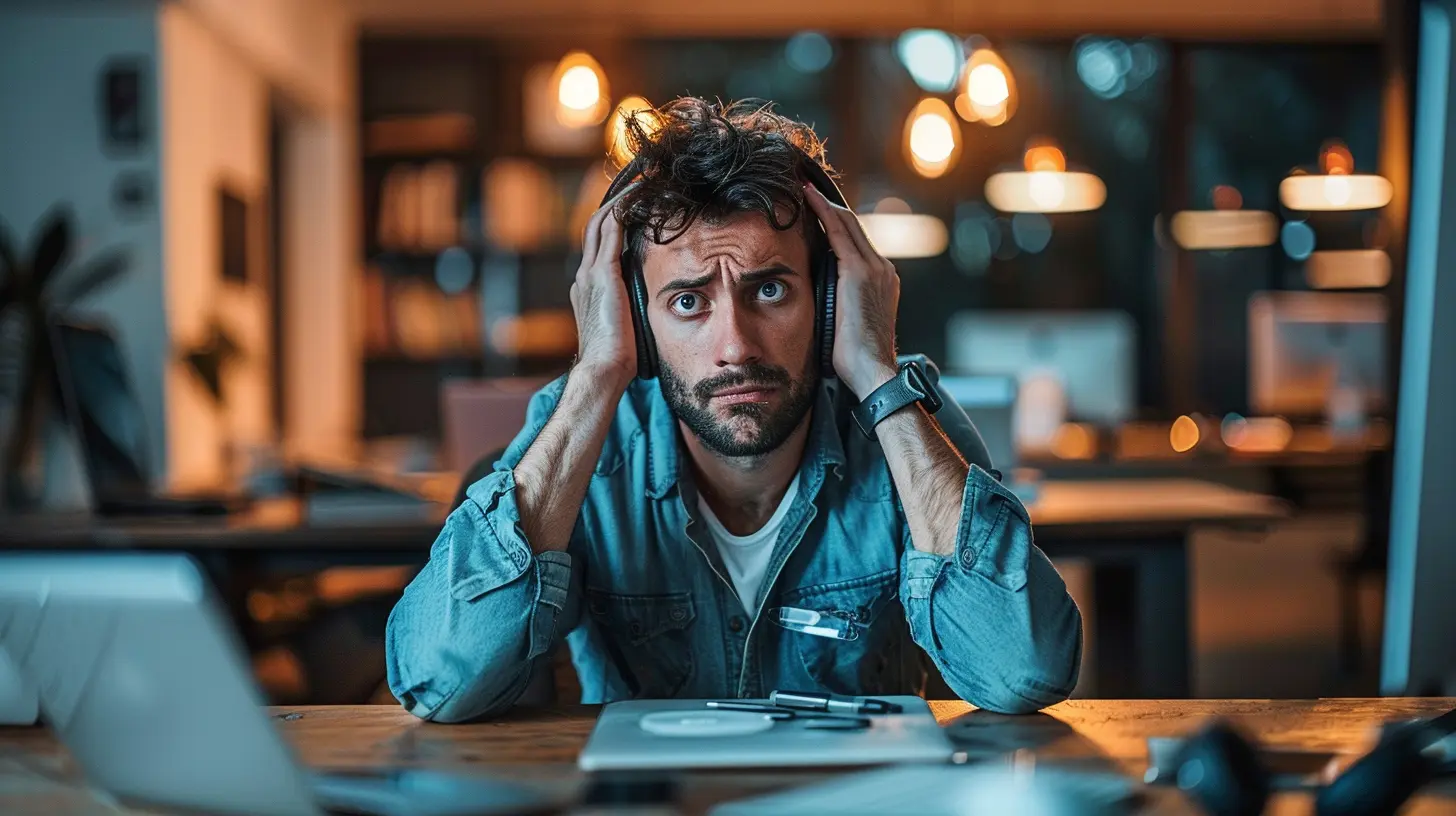
🔁 Bluetooth Won’t Connect – The Not-So-Wireless Experience
Wireless headphones should mean fewer hassles, right? Not always. Bluetooth pairing issues can make you miss the good old tangle of wires.Why It Happens:
- Device memory full: Bluetooth headphones can only remember a limited number of devices.- Software glitches: Faults in the headphone firmware or on your phone/laptop.
- Outdated drivers: PC users — this one’s on you.
- Too far apart: If you’re more than 30 feet away, the connection can drop.
- Battery drama: Low battery might keep your headphones from activating Bluetooth.
How to Fix It:
- Forget & Re-pair: On your device, forget the headphones and reconnect them.- Reset the Headphones: Most headphones have a reset button combo (check your manual).
- Clear Device List: Some headphones let you clear all previously paired devices.
- Update Bluetooth Drivers: On PCs, this can make or break your pairing success.
- Charge ‘Em Up: Full battery = full functionality (usually).
🔋 Battery Dies Too Quickly – The Juice Drain
Wireless headphone users, we've all been there. You just finished charging them and boom—dead again after two hours.Why It Happens:
- Aging batteries: After hundreds of recharge cycles, batteries degrade.- High volume usage: Cranking it up burns more power.
- Background features: Noise-cancellation and LEDs eat up extra juice.
- Faulty charging: Incomplete charges due to bad cables or ports.
How to Fix It:
- Lower the Volume: Simple but effective.- Turn Off Features: If you don’t need ANC (Active Noise Cancellation), turn it off.
- Replace the Battery: Not all headphones allow this, but if yours does, go for it.
- Use the Right Charger: Ensure the charger meets your headphone’s power specs.
- Check for Firmware Updates: Manufacturers often fix battery life issues in updates.
🎤 Microphone Not Working – The Mute Button Mystery
Trying to make a call or hop on a meeting, and no one hears you? Mic issues on headphones can make remote work feel like remote nothing.Why It Happens:
- Muted mic: Obvious, but often overlooked.- App permissions: Your OS might be blocking mic access.
- Wrong device selected: Your computer might default to its internal mic.
- Physical damage: If your mic wire has snapped, it’s game over.
How to Fix It:
- Check Mute Buttons/Switches: Some headphones have physical mute toggles.- Settings Dive: Ensure the right mic is selected in Zoom, Discord, or Windows settings.
- Inspect the Wire: Again, be on the lookout for damage.
- Test on Another Device: Rule out software issues.
- Use a USB Adapter: If you're using a combo jack and it's not working, try a USB sound card adapter.
👂Earpads Falling Apart – The Foam Fallout
Your sound’s fine, but the squishy parts are peeling? That wears on your comfort—and your confidence.Why It Happens:
- Sweat and body oil: Over time, these wear down the earpad material.- Age: Everything wears out eventually, especially if you use them daily.
- Storage habits: Leaving headphones in hot cars or humid places is a recipe for earpad disaster.
How to Fix It:
- Replace the Earpads: Most brands sell replacements. Some third-party ones even upgrade comfort.- Use Protective Covers: Keeps them cleaner for longer.
- Regular Cleaning: Wipe down your headphones weekly to remove buildup.
⚡One Side Louder Than the Other – The Balance Battle
Ever feel like one side of your headphones is yelling while the other whispers? It messes with your flow, especially if you're watching a movie or gaming.Why It Happens:
- Audio balance settings: Sometimes your OS shifts the left/right balance.- Earwax or debris: Yup, sometimes it’s literally just dirt.
- Driver weakening: One driver might be aging faster than the other.
- Cable issue: Shared wiring might be failing for one side.
How to Fix It:
- Check Sound Settings: Adjust the balance in Windows, macOS, or mobile settings.- Clean the Mesh: Use a soft brush or cloth to clean out any blockages.
- Replace the Cable: Especially if it’s detachable.
- Professional Repair: If it’s a pricey pair, someone might be able to replace the driver.
🧼 Pro Tips to Prevent Future Headphone Trouble
They say prevention is better than cure—and they’re right (especially when headphones aren’t cheap).- Avoid Tugging the Cable: Pull from the plug, not the wire.
- Use a Case: Don’t just toss them in your bag.
- Don’t Crank the Volume: High volumes can blow the drivers—and your eardrums.
- Keep Them Clean: Regularly wipe down earpads and connectors.
- Watch the Weather: Don’t use them in the rain unless they’re waterproof.
🛠️ When to Replace Instead of Repair
Let’s be real—sometimes it’s just not worth the hassle.Replace your headphones if:
- You’ve repaired the same issue more than twice.
- The damage is internal and complex (especially for wireless or ANC headphones).
- Repair costs are 50% or more of the new model.
- You’re ready for an upgrade anyway (hey, no shame in that).
Final Thoughts
Headphones are like the unsung heroes of our tech life. But even heroes have bad days. By understanding common issues and how to fix them, you not only save money but also gain some serious tech-savvy points.Whether you rock wired, Bluetooth, or noise-canceling cans, taking a bit of time to care for them will go a long way. And when trouble does strike? You’re now armed with the knowledge to fight back—one wire twist and audio setting at a time.
all images in this post were generated using AI tools
Category:
HeadphonesAuthor:

John Peterson
Discussion
rate this article
2 comments
Esther McCool
Great tips, thank you!
March 28, 2026 at 5:10 AM
John Peterson
Thank you! I'm glad you found the tips helpful!
Destiny McNeil
Great tips for troubleshooting! Clear explanations on headphone issues make it easy for users to follow.
March 3, 2026 at 5:07 AM
John Peterson
Thank you! I’m glad you found the tips helpful and easy to follow. Happy listening!