How to Troubleshoot Common Network Issues Like a Pro
22 December 2025
Ever been in the middle of an important Zoom call or an intense gaming session, only for your internet to suddenly betray you? Frustrating, right? Network issues can feel like an unsolvable mystery, but the truth is, most problems can be diagnosed and fixed with a little know-how.
In this guide, we’ll break down the most common network issues and show you exactly how to troubleshoot them like a pro. No tech degree required—just a bit of patience and a willingness to dive in!
1. Start with the Obvious: Check Your Cables and Connections
Before diving into complicated fixes, let’s start with the basics. It sounds silly, but loose or damaged cables are some of the most common culprits behind connectivity issues.What to do:
- Ensure all Ethernet cables are securely connected to your router, modem, and computer.
- Check for signs of wear and tear—frayed wires or bent connectors can cause unstable connections.
- If you're using Wi-Fi, make sure your router is plugged in and powered on (yes, sometimes the power cord gets loose!).
If everything looks good but you're still offline, it's time for step two. 
2. Restart Everything: The Classic Fix
You’ve probably heard this one before—and for good reason! Restarting your network devices is often the simplest way to fix random connectivity issues.How to do it properly:
1. Power down your modem and router.
2. Unplug them from the power source and wait for at least 30 seconds.
3. Plug them back in, starting with the modem first. Wait for it to fully power up.
4. Turn on the router and wait for all the lights to stabilize.
5. Test your connection again.
Sometimes, this is all it takes to get back online. If not, let's keep troubleshooting. 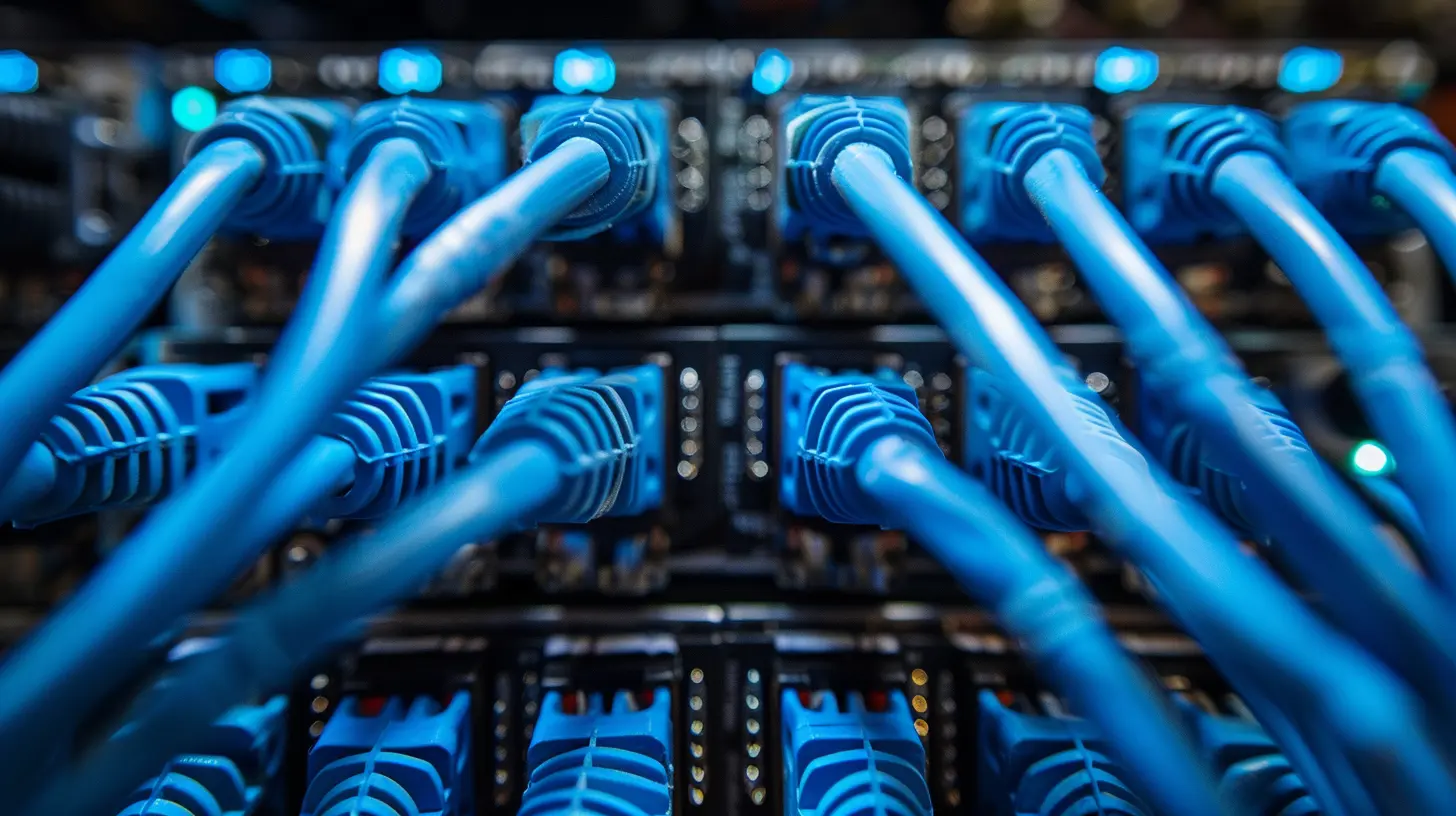
3. Check Your Internet Speed and Connection Status
If your connection is slow or keeps dropping, it’s time to check your internet speed.Steps to check your speed:
- Use a speed test website (like Speedtest.net) to see your download and upload speeds.
- Compare the results to the speed you're paying for. If there's a significant difference, your ISP (Internet Service Provider) might be throttling your connection or experiencing an outage.
If everything looks normal but your network is still unstable, the problem might be within your home setup. 
4. Identify the Problem: Is It Your Device or Your Network?
Before blaming your entire network, figure out if the issue is specific to one device.How to check:
- Try connecting a different device (like your phone or another laptop) to the same network.
- If only one device is having trouble, the issue may be with that specific device.
- If multiple devices are experiencing connectivity issues, it’s likely a network-wide problem.
If it’s just one device, restarting it or forgetting and reconnecting to the Wi-Fi might fix the issue.
5. Check for Router Overload
Routers can only handle a certain number of connected devices before things start slowing down. If you have multiple devices streaming Netflix, gaming, or downloading large files simultaneously, you might be overloading your router.What to do:
- Disconnect devices that aren’t in use.
- Restart your router to clear any congestion.
- If the problem persists, consider upgrading to a better router that can handle more devices.
6. Change Your Wi-Fi Channel to Avoid Interference
If your Wi-Fi is slow or dropping, interference from neighboring networks or household devices (like microwaves and cordless phones) could be the issue.How to fix it:
- Log into your router’s settings (usually by typing `192.168.1.1` or `192.168.0.1` into your browser).
- Navigate to the Wi-Fi settings and look for the channel selection option.
- Switch to a less crowded channel (for 2.4GHz, try channels 1, 6, or 11).
This can significantly improve your Wi-Fi performance, especially in apartment buildings where multiple networks overlap.
7. Update Your Firmware and Network Drivers
Just like apps and operating systems, routers need software updates too! Running outdated firmware can cause connectivity issues.For Your Router:
- Visit your router manufacturer’s website and download the latest firmware update.- Log into your router’s settings and follow the update instructions.
For Your Device’s Network Drivers:
- On Windows, open Device Manager, find your network adapter, right-click, and select Update driver.- On macOS, ensure you’re running the latest system update, as network drivers are bundled with OS updates.
8. Flush Your DNS and Reset Your IP
Sometimes, your device stores outdated network data that can interfere with connectivity. Flushing your DNS and resetting your IP address can resolve issues with websites not loading properly.Flushing DNS (Windows & Mac)
1. Open Command Prompt (Windows) or Terminal (Mac).2. Type the following command:
   ipconfig /flushdns    (Windows)
   sudo dscacheutil -flushcache    (Mac)
3. Hit Enter, then restart your device.
Renewing Your IP Address (Windows)
1. Open Command Prompt and type:
   ipconfig /release
   ipconfig /renew
2. Hit Enter after each command.
This forces your device to request a fresh IP address from your router, which can resolve connectivity issues.
9. Check for ISP Outages
If nothing works, it might not be you—it could be your ISP.How to check:
- Visit your ISP’s website or social media for outage updates.
- Check sites like DownDetector to see if others are reporting issues.
- Call your ISP’s customer service and ask if there are known problems in your area.
If there’s an outage, unfortunately, there’s not much you can do except wait for them to fix it.
10. Consider Resetting Your Router to Factory Defaults
If you've tried everything and still have network issues, resetting your router to factory settings might be the last resort.How to do it:
- Look for the reset button (usually a tiny hole) on your router.
- Use a pin or paperclip to hold the button for 10-30 seconds until the router restarts.
- Set up your router again using the default network name and password.
This will erase any custom settings but can solve stubborn connection issues.
Final Thoughts
Troubleshooting network issues doesn’t have to be overwhelming. By following these steps, you can diagnose and fix most common problems without calling your ISP or tech support.Remember, start with the basics—check your cables, restart your devices, and narrow down the problem before jumping into advanced fixes. With a little patience and these pro tips, you'll have your network running smoothly in no time!
all images in this post were generated using AI tools
Category:
NetworkingAuthor:

John Peterson
Discussion
rate this article
2 comments
Phoebe McGillivray
Troubleshooting network issues is like detective work—follow the clues! Start with basics like checking cables and rebooting devices, then move to advanced diagnostics. Remember, a keen eye for detail and patience are your best tools. With these pro tips, you'll be unraveling network mysteries in no time!
January 31, 2026 at 5:09 AM
John Peterson
Absolutely, starting with the basics is key. A methodical approach really helps in identifying the root cause. Glad you found the tips useful!
Vito Cruz
Great tips! Network issues can be so frustrating—thank you!
December 23, 2025 at 4:10 AM
John Peterson
Thank you! I'm glad you found the tips helpful!